Mac For Python Developers – 4 Tips & Tricks

Python has become one of the most popular programming languages in recent years, and with good reason. Its simplicity, readability, and versatility make it a favorite among developers of all levels. If you’re a Python developer who uses a Mac, you’re in luck! The Mac operating system provides numerous features and tools that can enhance your Python coding experience. In this article, we will explore some tips and tricks specifically tailored for Python developers on Macs.
Setting up Python on your Mac
1. Installing Python on your Mac is a simple process that can be done in just a few steps. First, you'll want to open up the Terminal application on your Mac. From there, you can use the Homebrew package manager to install Python by running the command brew install python. This will download and install the latest version of Python onto your system.
2. Once Python is installed, you'll want to make sure it's set up correctly in your PATH environment variable so that you can easily access it from the Terminal. You can do this by running the command echo 'export PATH=/usr/local/opt/python/libexec/bin:$PATH' >> ~/.zshrc (assuming you're using the default zsh shell). This will add the necessary path information to your shell configuration file.
3. To verify that Python is set up correctly, you can open a new Terminal window and run the command python --version. This should display the version number of Python that you installed. Additionally, if you run the command which python, it should show a path like /usr/local/bin/python, indicating that Python is now accessible from anywhere on your Mac.
Using virtual environments for Python development
One common issue that Mac users may encounter when using virtual environments for Python development is the problem of the system not updating. This can be frustrating, as it prevents users from accessing the latest features and improvements in their virtual environment. One possible solution to this problem is to ensure that you have the latest version of Python installed on your Mac. By doing so, you can ensure that your virtual environment will also be up-to-date.
Another potential solution is to check for any conflicts between your virtual environment and other software or packages on your Mac. Sometimes, certain dependencies or conflicting versions can prevent updates from being applied successfully. In such cases, it may be necessary to uninstall and reinstall problematic packages or resolve any conflicts manually. Additionally, staying informed about recent updates and bug fixes in both Python and your virtual environment's packages can help you troubleshoot issues related to updating effectively.
Optimizing performance on your Mac
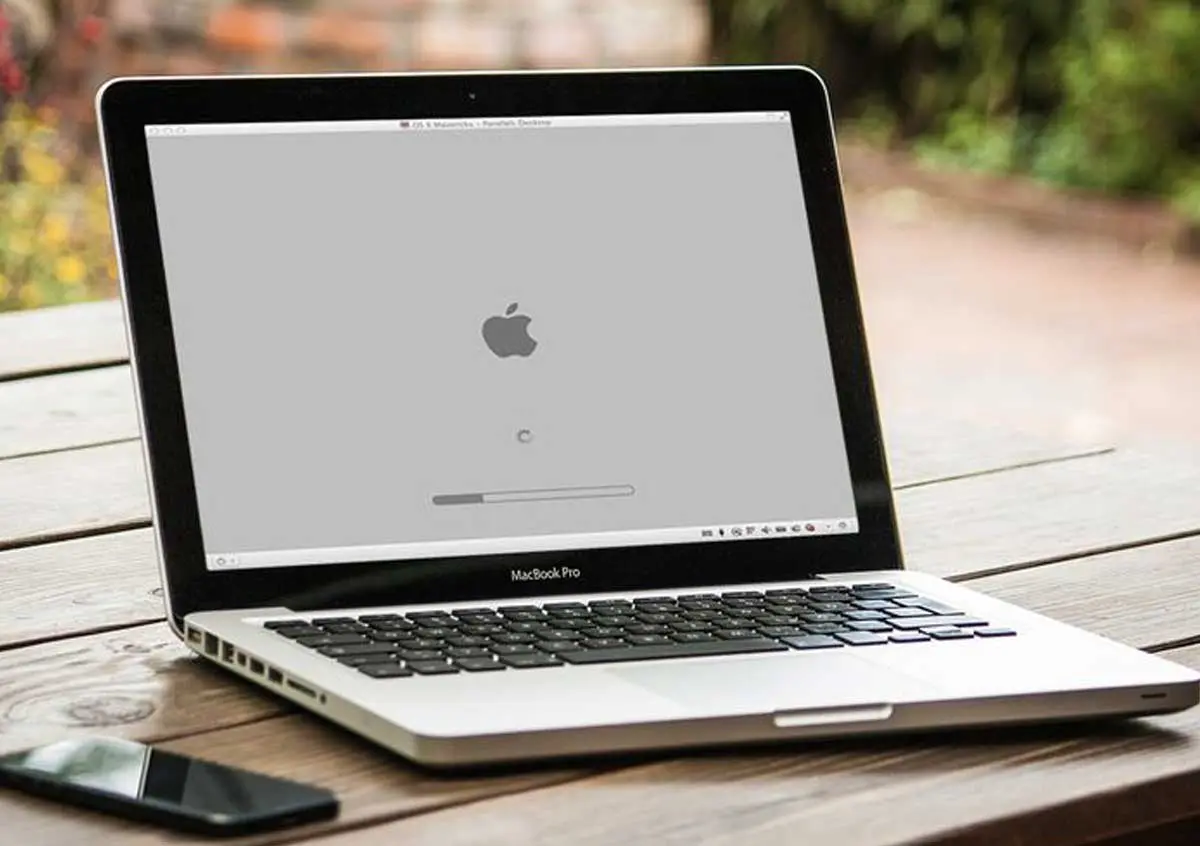
If your Mac not updating, it can significantly impact its performance and leave you frustrated. However, there are a few steps you can take to optimize its performance. Firstly, ensure that your Mac is running the latest version of macOS by checking for software updates in System Preferences. Keeping your operating system up to date not only ensures better performance but also enhances security.
Another way to optimize performance on your Mac is by managing startup items. By minimizing the number of applications that launch automatically at startup, you can reduce the strain on system resources and improve overall speed. To do this, go to System Preferences > Users & Groups > Login Items and remove any unnecessary or resource-intensive apps from the list.
Lastly, regularly cleaning up your hard drive can help boost performance. Deleting old files, temporary files, and unused applications frees up valuable disk space and reduces clutter. You can use built-in tools like Disk Utility or third-party software to perform disk cleanup tasks efficiently.
Maximizing productivity with shortcuts and tools
One of the most effective ways to maximize productivity as a Python developer on a Mac is by leveraging shortcuts and tools. Shortcuts allow you to quickly perform actions without having to navigate through menus or use the mouse extensively. For example, learning keyboard shortcuts for common tasks like saving files, copying and pasting, and navigating between windows can significantly speed up your workflow.
In addition to shortcuts, there are numerous tools available that can enhance your productivity as a Python developer on a Mac. Integrated development environments (IDEs) like PyCharm or Visual Studio Code provide features such as code completion, debugging capabilities, and version control integration that streamline your coding process. Furthermore, using package managers like Homebrew or Conda allows you to effortlessly install and manage Python packages, saving you time in setting up your development environment.
Vuoi restare sempre aggiornato con le notizie più importanti?
Iscriviti ai nostri canali ufficiali:
Riceverai in tempo reale tutti gli aggiornamenti direttamente sul tuo smartphone.